Developing a Mobile App with AI Assistance: Beginner's Guide
You have an app idea sitting in your head, maybe sketched on a napkin, but zero experience writing Swift or Kotlin. A year ago that meant hiring a developer or spending months learning from scratch. Today, AI coding tools let you go from concept to a working mobile app in days, not months, and you do not need a computer science degree to pull it off.

You have an app idea sitting in your head, maybe sketched on a napkin, but zero experience writing Swift or Kotlin. A year ago that meant hiring a developer or spending months learning from scratch. Today, AI coding tools let you go from concept to a working mobile app in days, not months, and you do not need a computer science degree to pull it off.
Photo by FOX ^.ᆽ.^= ∫ from Pexels
TL;DR:- AI tools like Cursor, Claude, and Expo with React Native let non-engineers build functional mobile apps by generating code from plain-English prompts.
- The full cycle covers ideation, design, AI-assisted coding, testing, and deployment to app stores.
- A practical note-taking app example walks you through every step so you can ship your first app this week.
Mobile app basics you actually need
Skip the textbook definitions. A mobile app has three layers that matter to you as a builder:
- UI (User Interface) - the screens, buttons, and text your users tap and swipe.
- Logic - what happens when they tap: saving a note, filtering a list, sending data to a server.
- Data storage - where information lives, locally on the phone or in a cloud database like Firebase or Supabase.
For cross-platform development (one codebase, both iOS and Android), React Native with Expo is the most beginner-friendly stack right now. You write JavaScript or TypeScript, and Expo handles the native compilation. Tools like Flutter (Dart) and Capacitor (web technologies) are solid alternatives, but React Native has the largest ecosystem of AI-generated code examples to learn from.
Brainstorm and design your app
Before touching any code, answer three questions on paper or in a notes app:
- Who uses this? One sentence describing your target user.
- What is the core action? The single thing the app does better than alternatives.
- What does the first screen look like? Sketch it, even badly.
Use AI tools for coding
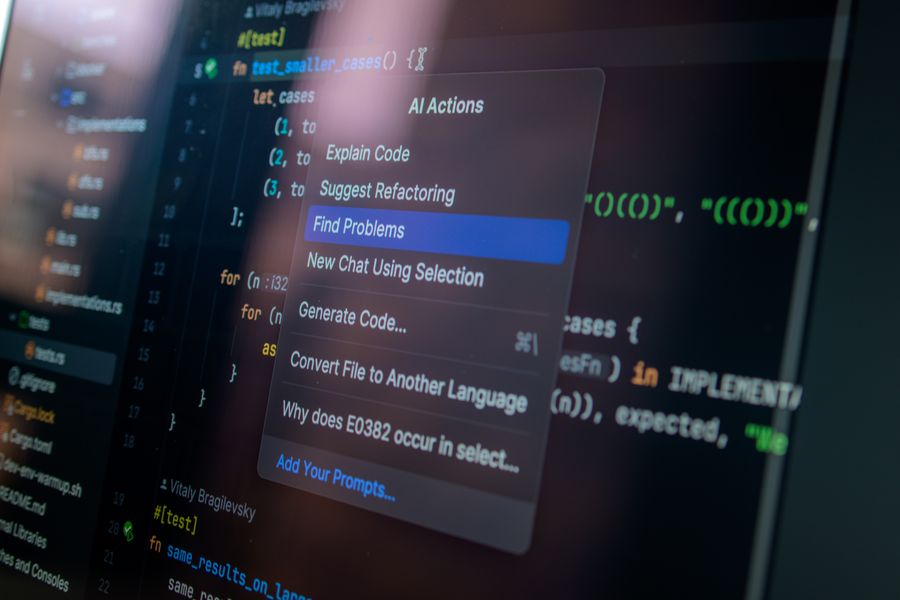
This is where the magic happens, and where most people get stuck. The trick is treating AI as a junior developer who is fast but needs clear instructions.
Cursor (VS Code fork with built-in AI) is the go-to editor for this workflow. Open a new Expo project, then use Cursor's chat to describe what you need:
Create a NoteList component that displays notes from AsyncStorage
as a scrollable FlatList with a swipe-to-delete gesture.
Cursor generates the component, imports, and even the storage helper functions. You review, tweak, and move on.
Other tools worth knowing:
- Claude (Anthropic) - excellent for explaining errors and refactoring entire files.
- GitHub Copilot - inline autocomplete that speeds up repetitive code.
- Lovable and Bolt - full-app generators from a prompt, good for rapid prototyping.
"The "last 20%" problem: AI gets you a solid starting point, but a starting point isn't a finished product.">, How to Build an App with AI
That last 20% is debugging, edge cases, and polish. Expect to spend real time there. AI gets you moving fast; you still need to steer.
Test and refine your app

Testing is not optional, even for a side project. A crashing app gets one-star reviews and zero retention. Here is a practical testing sequence:
- Run on a real device - Expo Go lets you scan a QR code and test on your actual phone. Simulators miss touch issues and performance problems.
- Test the happy path - go through the main flow (create note, edit, delete) and confirm it works end to end.
- Test edge cases - empty states (no notes yet), very long text, offline mode, rapid tapping.
- Ask three people to use it - watch them, do not explain anything. Where they hesitate is where your UX breaks.
- Fix the top three issues - not all of them, just the three that block the core experience.
Deploy your mobile app
Deployment is the step that intimidates most beginners, but Expo simplifies it dramatically.
For Android:- Run
eas build --platform androidto create an APK or AAB file. - Create a Google Play Developer account ($25 one-time fee).
- Upload the build through the Google Play Console.
- Fill in the store listing: screenshots, description, privacy policy.
- Submit for review (usually approved within hours to a few days).
- Run
eas build --platform ios(requires an Apple Developer account, $99/year). - Use
eas submitto push the build to App Store Connect. - Complete the app metadata and submit for Apple review (typically 24-48 hours).
Building a note-taking app: walkthrough
Here is the development cycle applied to a concrete example: a simple note-taking app called QuickNotes.
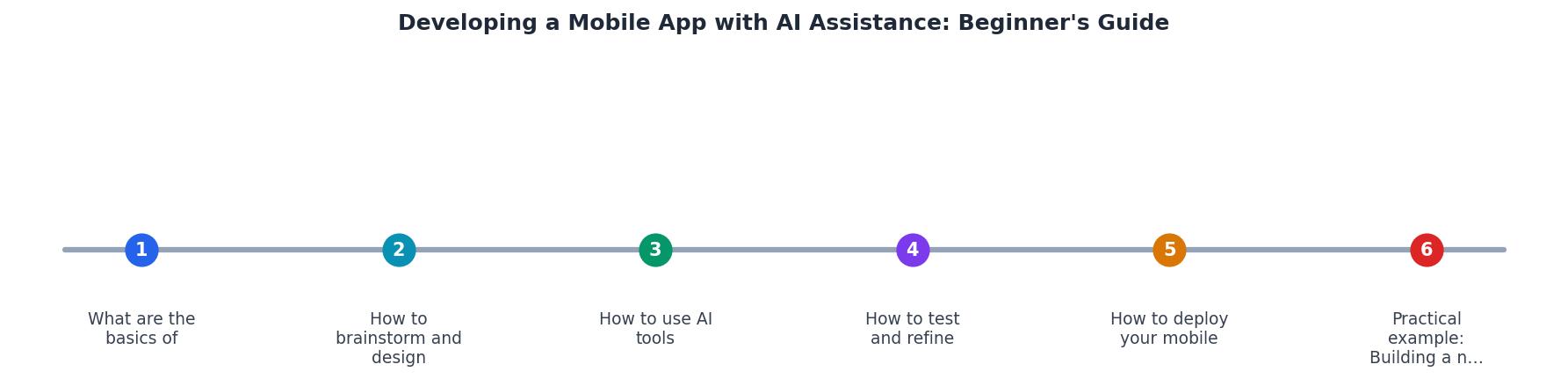
Following the diagram steps:
- Ideate - QuickNotes lets users create, edit, and delete plain-text notes with timestamps.
- Design - Three screens: Note List, Note Editor, Settings. Wireframed in Figma in 30 minutes.
- AI Code - Prompt Cursor: "Expo app with React Navigation, three tabs, AsyncStorage for persistence, and a floating action button to create notes." Review the generated project structure.
- Test - Run on Expo Go, test creating 20 notes, deleting in bulk, and reopening after force-close.
- Refine - Fix the keyboard covering the text input (a classic React Native issue; AI knows the fix:
KeyboardAvoidingView). - Deploy - Build with EAS, submit to both stores.
The following dashboard shows a realistic breakdown of where your time goes when building a first app with AI assistance:
Time Breakdown: First App with AI (Weekend Build)
Mobile App Design & Development Template
Your progress is saved automatically in your browser.
FAQ
Frequently Asked Questions
What is the first app idea you have been sitting on? Share it below, and let's figure out the fastest path to getting it on a phone.
Additional Resources
- How to Build an App With AI: 2026 Walk-Through - Turn your idea into a functional app in minutes with Bubble AI. Learn how to generate, refine, and launch an AI-powered app quickly and efficiently.
- How to Build an App with AI: A Comprehensive Guide - Discover how to leverage AI to create applications. Learn how to go from a simple prompt to a live, multi-file application using Google AI Studio.
- The RIGHT way to build an AI app - The RIGHT way to build an AI app · Speed: Development is significantly faster because you're describing functionality rather than meticulously ...
Ready to Master Vibe Coding?
Learn to build software faster with AI assistance using the Vibe Coding Bible.
Get Started