How to Use AI to Enhance App Development for Designers
You have a design that looks great in Figma, but turning it into a working app feels like crossing into foreign territory. AI tools now let designers go from mockup to functional prototype without writing code from scratch, and the results are getting surprisingly close to production quality. This guide covers the specific tools, techniques, and workflows that make that possible today.

You have a design that looks great in Figma, but turning it into a working app feels like crossing into foreign territory. AI tools now let designers go from mockup to functional prototype without writing code from scratch, and the results are getting surprisingly close to production quality. This guide covers the specific tools, techniques, and workflows that make that possible today.
Photo by Tara Winstead from Pexels
TL;DR:- AI tools like Cursor, v0, Locofy, and Galileo AI let designers generate working code directly from visual designs.
- Integrating AI into your design workflow cuts iteration time dramatically and removes the "handoff gap" between design and development.
- You do not need a CS degree to ship a real app, but you do need a structured approach to avoid the 80%-done trap.
Why Designers Should Use AI in Development
Designers have always been one step removed from the final product. You create the vision, hand it off, and hope the developer interprets it correctly. AI collapses that gap. Instead of waiting for a sprint cycle to see your design in a browser, you generate a working prototype in the same afternoon.
The practical benefits break down into three categories:
- Speed - generating UI components from descriptions or screenshots takes minutes, not days
- Autonomy - you test ideas without filing tickets or waiting for developer availability
- Fidelity - AI-generated code often matches your design intent more closely than a rushed handoff
AI Tools That Assist Design Tasks

The landscape of AI design-to-code tools has matured significantly. Here are the ones worth your attention, organized by what they actually do well.
Design-to-code converters:- Locofy - converts Figma and Adobe XD designs into React, Next.js, or HTML/CSS code. It reads your layers, auto-detects components, and generates responsive layouts.
- Anima - similar to Locofy but with tighter Figma integration and support for design tokens.
- TeleportHQ - visual builder that exports clean code from drag-and-drop layouts.
- Galileo AI - generates UI designs from text prompts. Describe a screen, get a polished layout with real content.
- Uizard - turns hand-drawn sketches or screenshots into editable digital designs, then exports code.
- v0 by Vercel - generates React components from natural language descriptions. Describe a pricing table, get a working component.
- Cursor - AI-powered code editor that lets you build and modify code through conversation. Ideal for designers who want to tweak generated output.
- Claude and ChatGPT - general-purpose AI that generates HTML, CSS, and JavaScript from design descriptions.
AI Tools by Design Stage
How AI Streamlines Design Workflows

The biggest workflow change AI introduces is eliminating the traditional handoff. Instead of a linear process (design → spec → develop → review → fix), you get a tight loop where design and code evolve together.
Here is the process that works in practice:
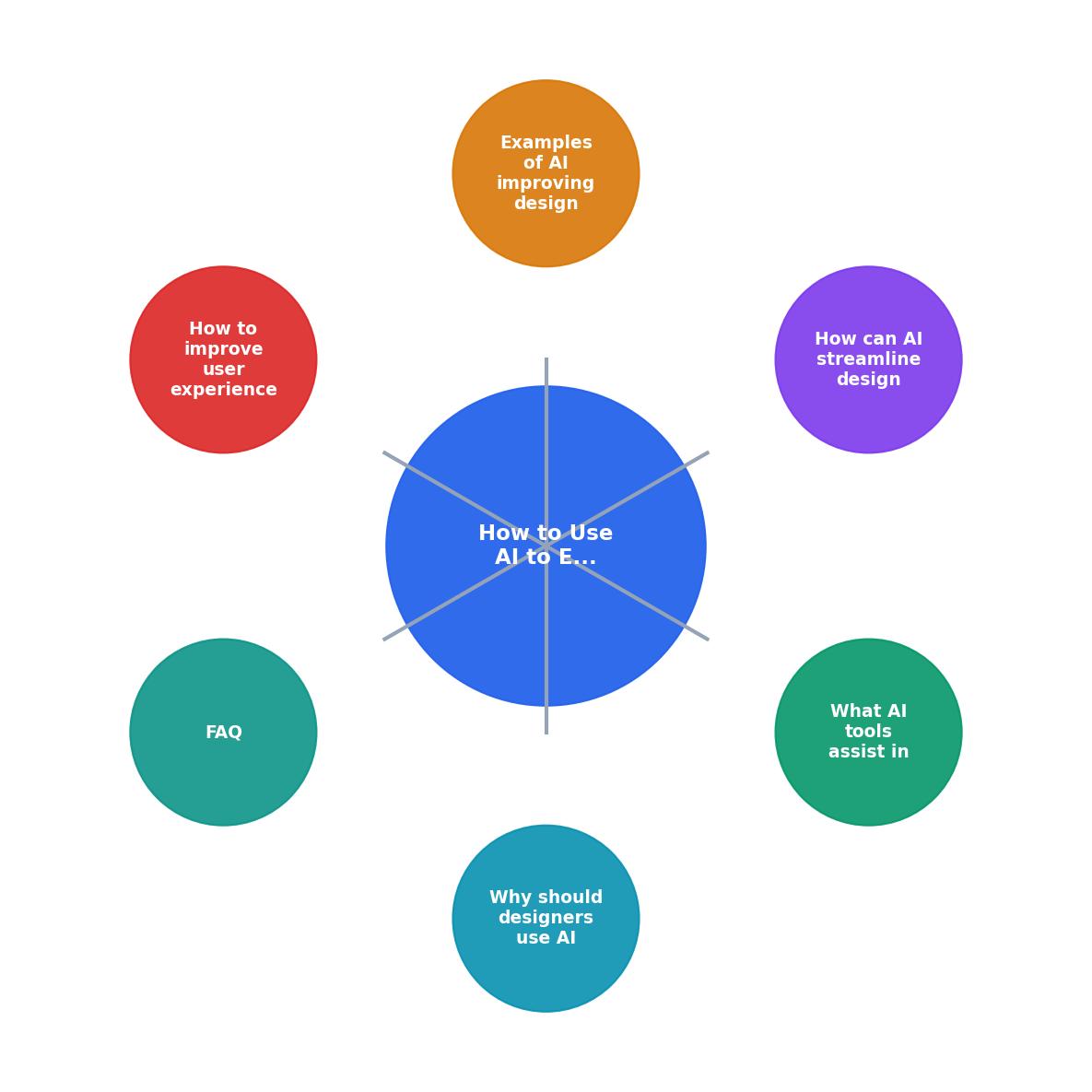
The steps break down like this:
- Design in Figma - create your screens with proper layer naming and component structure
- Export to AI tool - feed the design into Locofy, v0, or a code-generation assistant
- Review generated code - check the output in a browser, compare against your design
- Refine with AI chat - use Cursor or Claude to fix spacing, colors, or interactions through conversation
- Test on devices - verify responsive behavior and interactions
- Iterate - go back to step 1 or 4 depending on what needs changing
"The agent can help you go from an idea to an app prototype in minutes.">, Create a project with AI
Real Examples of AI-Enhanced Design

Abstract benefits are nice. Concrete examples are better.
Landing page from Figma to live site in 3 hours. A freelance designer used Locofy to convert a Figma landing page into Next.js code, then used Cursor to add scroll animations and a contact form. The entire process, from finished Figma file to deployed Vercel site, took a single afternoon. No developer involved.
Mobile app prototype for a client pitch. A UX designer described five screens to v0, got working React components, dropped them into a Next.js project, and presented an interactive prototype to a client. The client could tap through real screens on their phone instead of looking at static PDFs.
Design system component library. A product designer generated 40+ UI components using v0 and Claude, then organized them into a Storybook library. Each component matched the existing brand guidelines because the AI was given the design tokens (colors, spacing, typography) as context.
These are not edge cases. They represent the standard workflow for designers who have adopted AI tools in 2025 and 2026.
Improve UX Design with AI
AI does not just speed up visual implementation. It changes how you approach user experience research and testing.
- Content generation - populate prototypes with realistic content instead of lorem ipsum. Claude generates user-appropriate copy that makes usability testing more valid.
- Accessibility audits - paste your HTML into an AI assistant and ask it to identify WCAG violations. It catches contrast issues, missing alt text, and keyboard navigation problems faster than manual review.
- User flow analysis - describe your current user flow to an AI and ask for friction points. It identifies unnecessary steps, confusing labels, and drop-off risks based on UX best practices.
- A/B variant generation - describe a component and ask for three visual variations. Test them with users instead of committing to a single approach.
| Traditional UX Workflow | AI-Enhanced UX Workflow |
|---|---|
| Static wireframes | Interactive prototypes |
| Lorem ipsum content | Realistic generated copy |
| Manual accessibility checks | Automated WCAG scanning |
| Single design direction | Multiple AI-generated variants |
| Weeks to test | Days to test |
The combination of faster prototyping and AI-assisted analysis means you run more experiments in less time. Better data leads to better design decisions.
AI-Enhanced Design Workflow Checklist
Your progress is saved automatically in your browser.
For a deeper look at choosing the right AI coding tool for your specific needs, check out the guide on choosing an AI tool for your coding needs. If you work with JavaScript, the AI coding workflow for JavaScript resource covers framework-specific techniques.
The Vibe Coding Bible covers these workflows in depth, with step-by-step examples of going from design to deployed app using AI assistants. It is written specifically for builders who ship products without a traditional engineering background.
FAQ
Frequently Asked Questions
What AI tool has made the biggest difference in your design-to-development workflow? Share your experience below.
Additional Resources
- Create a project with AI | Android Studio - Use the power of generative AI to accelerate your Android development workflow. The agent can help you go from an idea to an app prototype ...
- 7 of the Best AI App Builders for 2026 - Using AI for app development for simpler builds and quick prototypes may offer the best cost-benefit, but even for complex apps, using AI can quickly give you a ...
- 10 Ways AI Can Speed Up your Mobile App Development - There are test case generation solutions, such as Testim and Applitools, that use AI to create test cases, ensuring better coverage and reducing ...
Ready to Master Vibe Coding?
Learn to build software faster with AI assistance using the Vibe Coding Bible.
Get Started